hbar supports several types of data visualization, accessible through the hbar user interface and standalone graphic utilities. In hbar, it is possible to render
* Image data
* Two-dimensional vector data
* X-Y data
* Two-dimensional surfaces (viewed in 3D)
* Surface contours
Each image utility allows for some customization of the data display and for the printing or saving of PostScript images.
Images, such as pupil images, can be displayed either from the hbar interface or the Unix command line. From the hbar interface, images are displayed and manipulated using the id.* commands. From the Unix command line, images are displayed using the standalone utility imdis.
From the hbar interface, an array may be displayed by opening an image display window and assigning the array to it: i.e., to load an image Images/0003 and display
% a.load "Images/0003" = a1
% id.new ID
% id.set.array ID a1
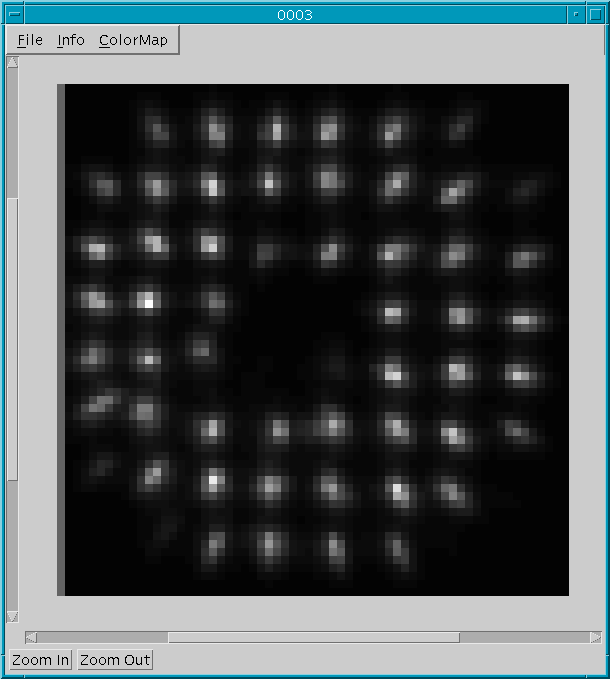
This sequence of commands opens the image display window shown in Figure 1-1.
Figure 1-1. Image display of hbar spot image data
The image may be manipulated from the hbar command line and to a
lesser extent from the window menus in the display application. The reader
is referred to Appendix A for a complete summary of the id.* commands
for image manipulation from the hbar command line.
The standalone utility for image display is imdis. imdis is called with the command line
% imdis filename [min max] [+r rects] [+p pos] [+v vects] [+c circ]
where the bracketed [] items are optional command line arguments. The arguments min and max may be used to scale the image data to the range defined by min and max. Rectangle, position, vector, and circle data may also be displayed using the +r, +p, +v, and +c command line arguments, respectively.
The same image displayed using the hbar commands (shown in Figure 1-1) may be displayed from the Unix command line by typing the command
% imdis Images/0003
Note that the window possesses a menu bar at the top and two buttons at the bottom left. The options associated with these window items are discussed in the following sections.
Clicking on File in the upper left corner activates a menu with three choices: Open, Print, and Quit. Clicking on Open pops up a file browser that the user can use to select a file to load. The file browser is shown in Figure 1-2.
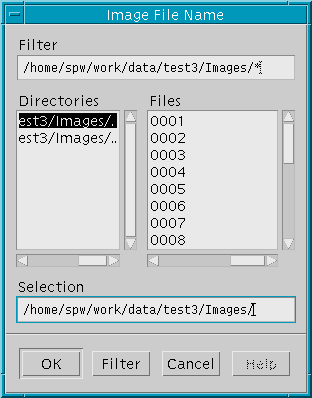
Figure 1-2. File browser used in loading image data
The file browser allows for changing directories, setting file filters,
selecting files, and getting help.
Clicking on Print opens a print option window. Since the printing interface is common to all of hbar's imaging utilities, it is discussed in section 1.6.
Clicking on Quit closes the image display window and terminates the session of imdis.
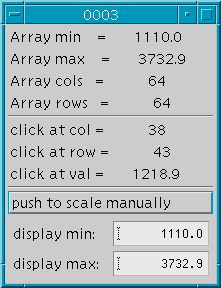
Figure 1-3. Image information window
Clicking on Info in the upper left corner activates a menu with two choices, Open and Close. Clicking on Open pops up the image information window shown Figure 1-3.
The information window displays the minimum and maximum value of the image array, the size of the image array, the array location of the last mouse click within the window, and text fields to adjust the scaling of the image data.
Clicking on Close removes the information window.
Clicking on Colormap in the upper left corner activates a menu with four choices for the image colormap: Grayscale, Terrain, Rainbow, and Pseudo. The default colormap is Grayscale. Samples of the other colormaps are shown in Figure 1-4 below.
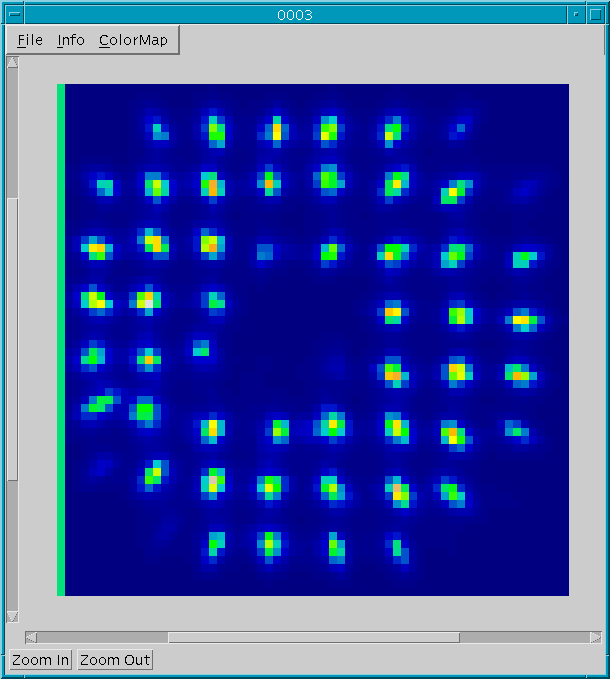
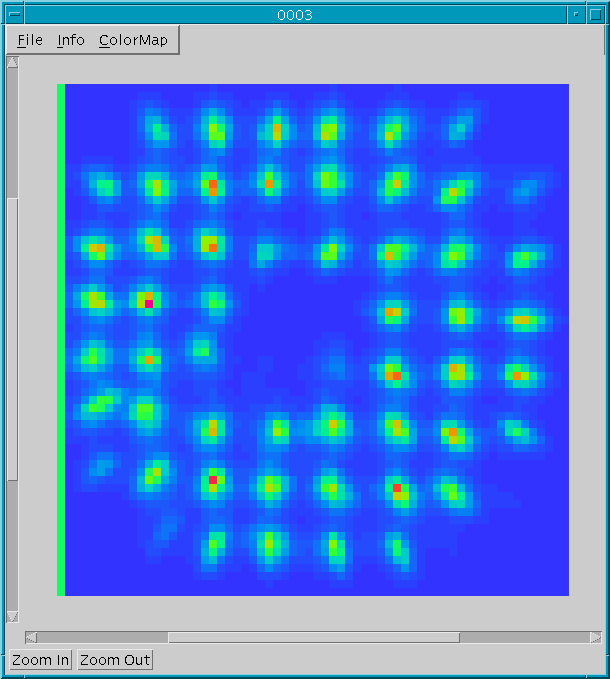
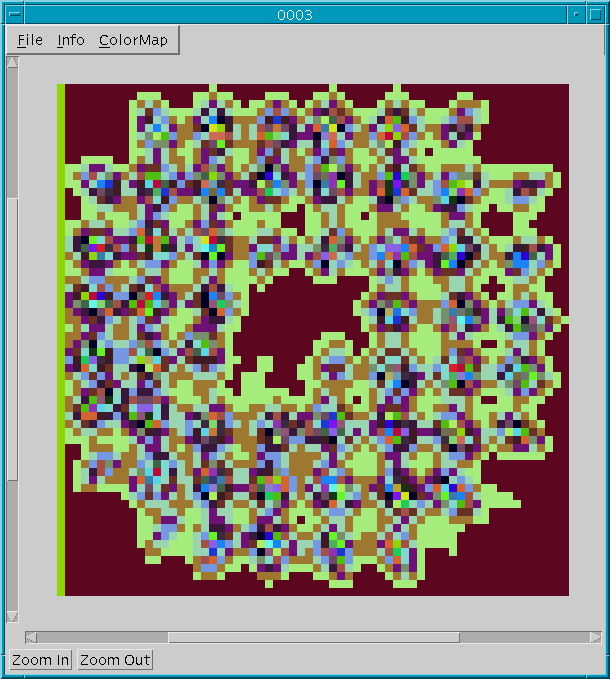
(a) Terrain (b) Rainbow (c) Pseudo
Figure 1-4. Samples of image display colormaps
The Terrain and Rainbow colormaps are very similar in color but differ in how color changes over the range of data. As seen in Figure 1-4, the Terrain colormap tends to emphasize large differences in data values more than the Rainbow colormap. Pseudo is a pseudo-random colormap that, although not the most aesthetically pleasing color scheme, emphasizes small differences in data values.
The two buttons in the lower left corner control the magnification of the image. Clicking on Zoom In has the effect of increasing the magnification of the image, and Zoom Out has the effect of decreasing the magnification. The effective magnification of one click on Zoom In is shown in Figure 1-5.
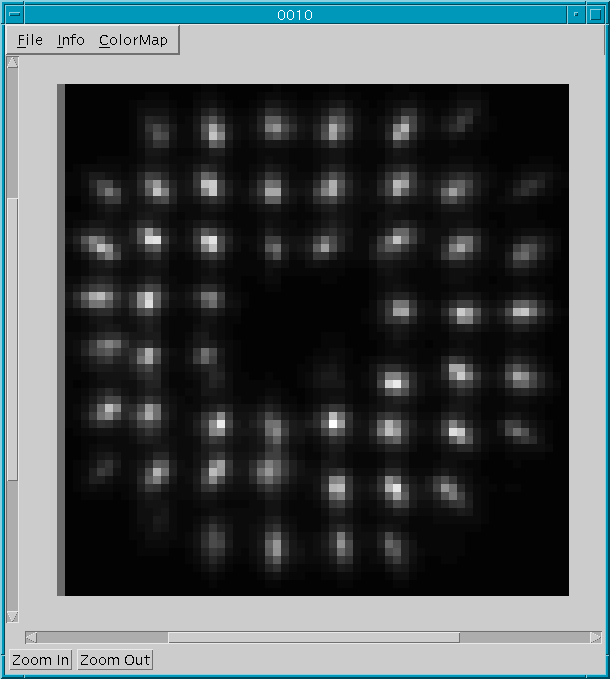
(a) Unzoomed Image
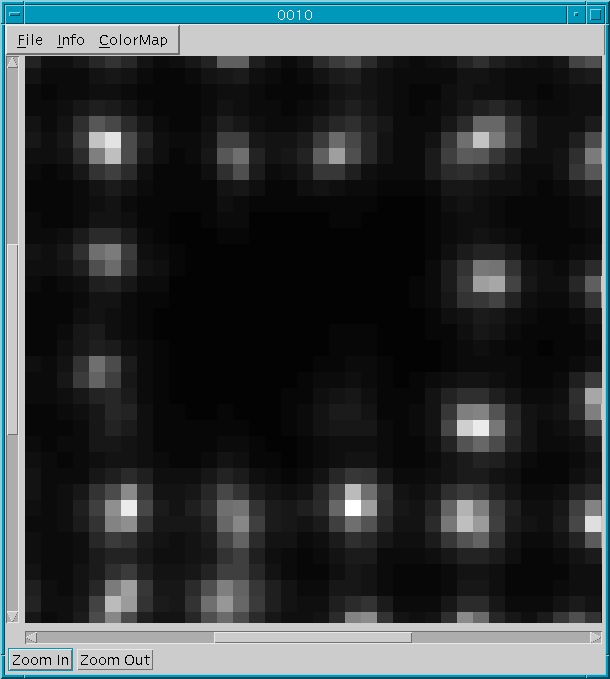
(b) Zoomed Image
Figure 1-5. (b) shows the effective magnification of one click on Zoom In on the image shown in (a)
The image may be positioned in the window with the horizontal and vertical scrollbars. This is useful when the image has been magnified and is larger than the viewport.
Vector data, as with image data, can be displayed through hbar atomics or through standalone Unix applications. From the hbar interface, vector data is displayed and manipulated with the vd.* commands. From the Unix command line, vector data may be displayed with the command vecdis and, with proper command line options, with imdis.
From the Tcl/Tk interface, vector data may displayed by opening a vector display window and assigning vector data to it. What follows is a sequence of hbar commands to load vector data from a file Vectors/0008 and display the vectors.
% a.load "Vectors/0008" = a1
% vd.new ID
% vd.set.array ID a1
These commands open a vector display window (shown in Figure 1-6).
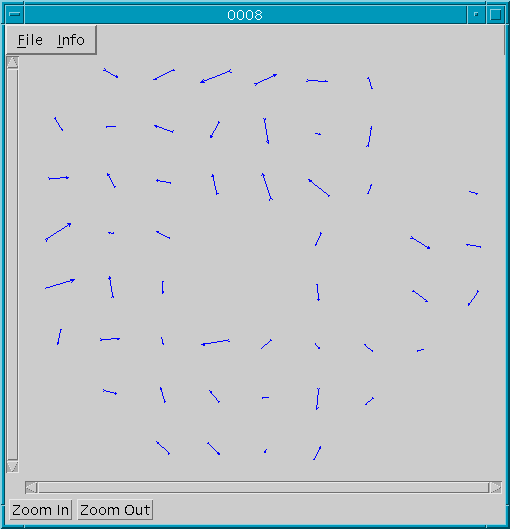
Figure 1-6. A vector display window
This data can also be displayed from the Unix command line by invoking
the utility vecdis as follows.
% vecdis file [len]
Here the bracketed [] item len is an optional parameter that specifies the length of the vector list to load from file.
The vector data in Figure 1-6 could have been loaded and displayed by typing at the Unix prompt
% vecdis Vectors/0008
To display vector data in conjunction with image data from the Unix command line, use the +v argument of imdis as follows.
% imdis Images/0008 +v Vectors/0008
Clicking on File in the upper left corner of the window activates a menu with three options: Open, Print, and Quit. The actions associated with each option are the same as for the image display utilities discussed in the previous section. See section 6.1.2 for details.
Clicking on Info in the upper left corner of the window activates a menu with two options: Open and Close. Clicking on Open opens the information window depicted in Figure 1-7.
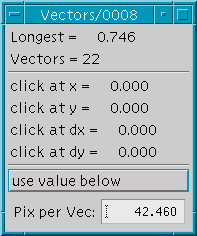
Figure 1-7. Vector information window
As shown in Figure 1-7, the information window has entries for the number
of vectors (Vectors) and the maximum vector length (Longest),
the locations of the last mouse click in the window (click at x,
click at y), and a text entry field to change the number
of pixels per vector (Pix per Vec).
Clicking on Close hides the information window.
The Zoom In and Zoom Out buttons in the lower left corner of the display window control the magnification of the vector display. The buttons perform the same functions as the like named buttons in the image display utilities (see section 6.1.5 for details).
As in the image display utilities, the vector data display may be positioned with the horizontal and vertical scrollbars. See section 6.1.6 for more information
Conventional X-Y data may be plotted by calling the pd.* commands from the hbar command line or by calling the utility plotdis from the Unix command line. Such X-Y data within hbar that can be plotted in this manner are OTFs, MTFs, and Encircled Energy.
From the hbar command line, an Encircled Energy data set stored in the file ENEs/0001 may be loaded and plotted with the following hbar commands.
% a.load "ENEs/0001" = a1
% pd.new PD% pd.set.array PD a1
After the pd.new command, a window like the one shown in the Figure 1-8 appears. The pd.set.array command assigns the a1 data set to the display, and it is drawn as a solid curve as shown in the figure below. The plot can be further manipulated from the hbar command line using the pd.* commands described in Chapter 7.
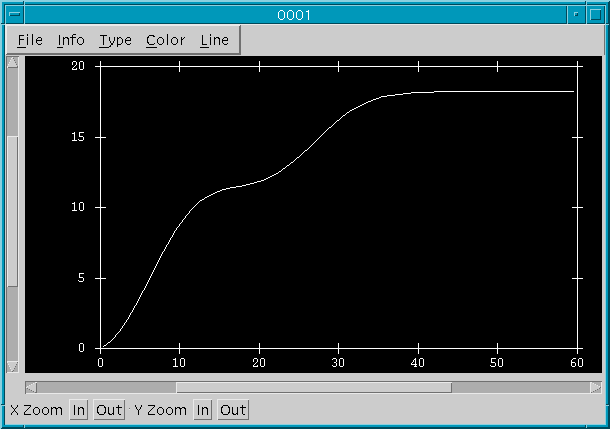
Figure 1-8. A hbar X-Y plot window
The same data set can be displayed from Unix using the plotdis command.
The plotdis command has the syntax
% plotdis file
or, in the case of X and Y data stored in separate files,
% plotdis xfile yfile
To plot the data in the previous example, the following command would be issued at the Unix prompt.
% plotdis ENEs/0001
The main menu bar in the plot window has five selections: File, Info, Type, Color, and Line. These selections, as well as the zoom functions, are described in the following sections.
Clicking on File in the main menu bar activates a pull-down menu
with the following choices: Open Y, Open XY, Overlay X,
Overlay XY, Print, and Exit. The first two options, Open
Y and Open XY, allow the user to plot a new data set in the
display window. Open Y is used for files containing Y data only,
where the X coordinate is understood to be the (integer) index of the data
element in the list. Open XY is used
for data whose X and Y values are stored in separate files.
In the case of clicking on Open Y, a file browser similar to those in the other imaging utilities appear, from which the user can select the file containing Y data. For Open XY, the user is first prompted to select the X data file from a file browser, and then the Y data file from a second file browser.
The X-Y plotting utility also allows for the overlay of several plots in the main display. As with the Open Y and Open XY selections, Overlay Y is used for files containing Y data only, and Overlay XY is used for overlaying data sets in which the X and Y data is stored in separate files. Overlay data is plotted in the default color and plot style. Changing the defaults to plot overlaid data with different colors and styles will be discussed in Section 6.3.7, after a description of the other features of the X-Y plotting utility.
As in the previous imaging utilities, clicking on Info in the main menu bar activates a pull-down menu with two choices: Open and Close. Clicking on Open pops up an plot information window, as shown in Figure 1-9, which has fields for the maxima and minima of the X and Y data and text fields to allow the user to change the default minima and maxima.
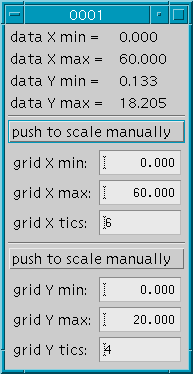
Figure 1-9. Plot information window
Clicking on Close removes the image information window.
The X-Y plotting utilities allow the user to specify the type, or plot style, of the plotted data. It should be noted that changing the plot style affects the current, or most recently loaded, data set and all data sets subsequently loaded (this will be made clear in section 6.3.7).
Clicking on Type in the main menu bar activates a pull-down menu with three options: Line, Dot, and Step. Line is the default plotting style, as shown in Figure 1-8. Clicking on Dot results in the current data set being plotted with dots, and Step causes the current data set to be plotted as a series of steps that passes through each data point. Examples of a Dot plot and a Step plot are shown in Figure 1-10.
Figure 1-10. Other plotting styles available in hbar's X-Y plotting
tools
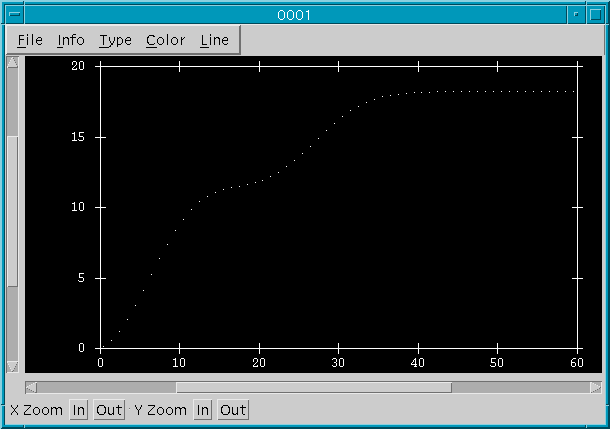
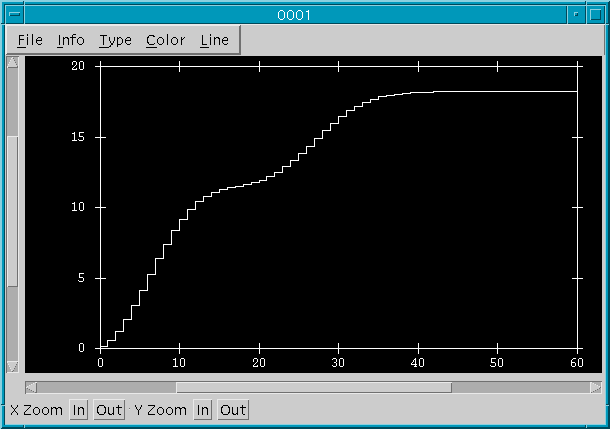
(a) Dot (b) Step
The plot color of the current data set may be changed by clicking on Color in the main menu bar and selecting the desired color from the pulldown menu which appears. The following color choices are available: white, red, yellow, green, cyan, blue, and magenta. white is the default plotting color. As with the plotting type, changing the default color affects the most recent data set loaded and all sets that are overlaid.
The final selection in the main menu bar allows for changing the line thickness/dot radius of the data plotted. Clicking on Line activates a pull-down menu with the following choices for line thicknesses/dot radii: 0, 1, 2, 3, 4, 5, 6, 7. The next section discusses how line thickness, as well as the plot style and color, can be changed to display different data sets with different plotting attributes. As with Type and Color, changing the line width affects the rendering of the current data set and all subsequently loaded data.
As described in Section 6.3.2, the user can select data sets to overlay on the existing display by selecting either Overlay Y or Overlay XY from the File menu. Any data sets overlaid on the existing display will be plotted with the current plot attributes (plot type, color, and line thickness). To produce a plot display containing several data sets plotted with different plot attributes, it is necessary to repeat the following procedure for each data set overlaid/plotted on the display.
1. Load/Overlay the data set.
2. Change the plot style (Type) if desired.
3. Change the plot color (Color) if desired.
4. Change the line thickness (Line) if desired.
Suppose a user wishes to plot the data sets ENEs/0001, ENEs/0003, and ENEs/0005 on the same display using plotdis. Suppose ENEs/0001 is to be plotted with blue lines, ENEs/0003 is to be plotted with cyan dots with radius 3, and ENEs/0005 with red steps. The procedure for making this plot is outlined as follows:
1. Start plotdis from the Unix command line and plot ENEs/0001: i.e.,
% plotdis ENEs/0001
2. Click on Color and select blue.
3. Click on File and select Overlay Y.
4. Select the directory ENEs in the left column of the file browser that pops up, select 0003 from the right column, and click on Select.
5. Click on Type and select Dot.
6. Click on Color and select cyan.
7. Click on Line and select 3.
8. Click on File and select Overlay Y.
9. Select the directory ENEs from the left column of the file browser, select 0005 from the right column, and click on Select.
10. Click on Type and select Step.
11. Click on Color and select red.
The resulting display is shown in Figure 1-11.
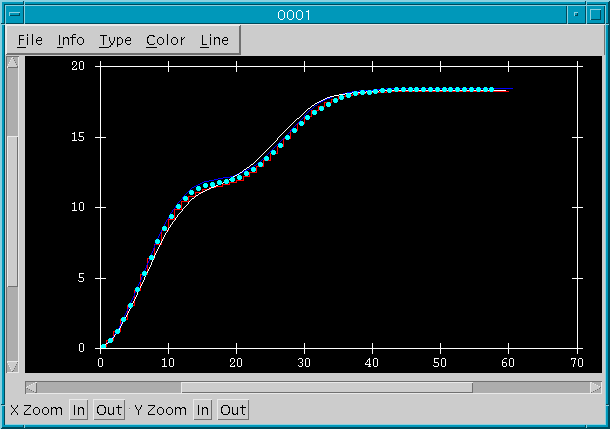
Figure 1-11. A hbar X-Y plot with three data sets
Unlike the zoom functions in the other hbar data display utilities, the user may selectively zoom the X and/or Y axes. Zooming in or out is accomplished by clicking on In or Out in the X Zoom or Y Zoom fields in the bottom left corner of the display window.
Any two-dimensional data set (i.e., an array) can be interpreted as height (Z) data sampled on some X-Y grid. In hbar, such data includes image data, OPDs, PSFs, and so on. For certain data types, like OPDs, a three-dimensional surface representation is useful for visualization and has physical significance. hbar allows for the rendering of surface data from the hbar interface through the wd.* functions and from the Unix command line through the utility wiredis.
From the hbar interface, surface data is displayed by loading an appropriate data set, opening a wireframe display, and assigning the data to the wireframe display. To load data stored in a file 0019 and display the surface represented by the data, the following commands might be entered.
% a.load "0019" = a% wd.new WD
% wd.set.array WD a
The commands open a wireframe display and plot the surface given by the data in 0019, as shown in Figure 1-12. Surface data is rendered in white by default, but has been changed to blue in Figure 1-12 to enhance visibility.
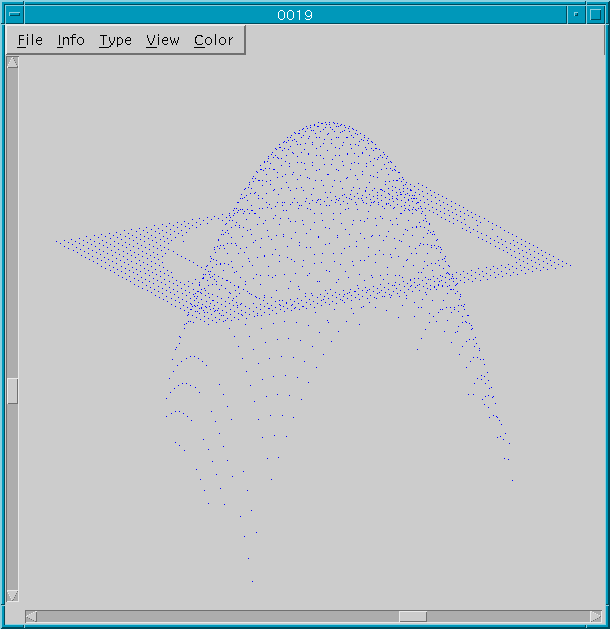
Figure 1-12. Surface data plotted using hbar's wireframe plotting tools
Surface data may also be displayed with wiredis, which may be started
from the Unix command line by
% wiredis file [min max]
where the bracketed [] arguments are optional. The arguments min and max specify a range in which the surface data is scaled. A command line that would display the image in Figure 1-12 is
% wiredis 0019
The display window has a menu bar with five menu items: File, Info, Type, View, and Color. Each menu item is discussed separately in the following sections.
Clicking on File in the upper left corner of the window activates a menu with three options: Open, Print, and Quit. The actions associated with each option are the same as for the image display utilities discussed in the previous section. See section 6.1.2 for details.
Clicking on Info activates a menu with two choices: Open and Close. Clicking on Open pops open the information window shown in Figure 1-13.
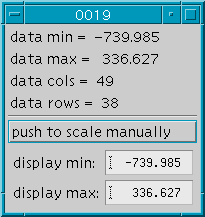
Figure 1-13. Wireframe information window
The information window has entries for the minimum and maximum data values
(data min, data max), the size of the data array (data
cols, data rows), and text fields for scaling the data to fall
within prescribed bounds (display min, display max).
Clicking on Close removes the information window from the display.
Clicking on Type activates a menu with four choices: Dot, Row, Grid, and Solid. Selecting Dot renders the surface with colored dots. Dot is the default plotting type, as shown in Figure 1-12. Selecting Row plots the surface with parallel lines. Grid renders the surface with an X-Y grid. Solid displays the surface with colored polygons whose brightness has been adjusted to account for lighting. Examples of Row, Grid, and Solid plot styles are shown in Figure 1-14.
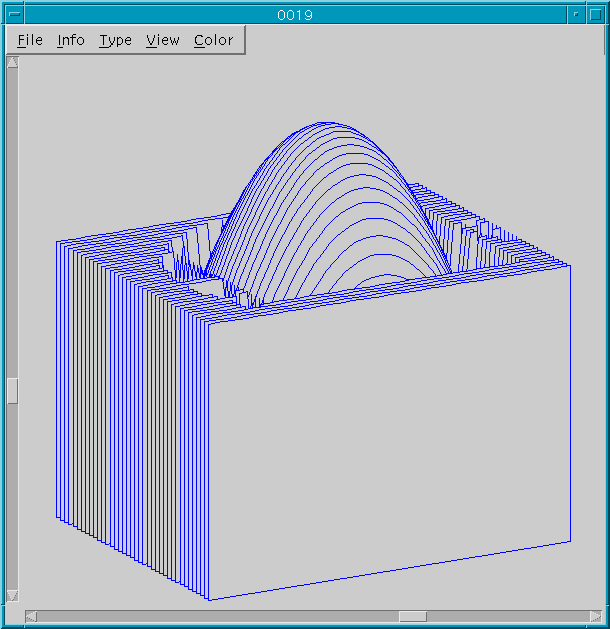
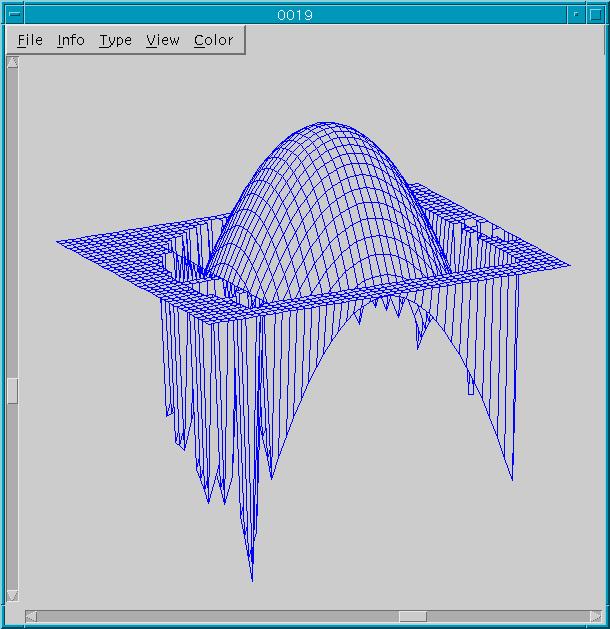
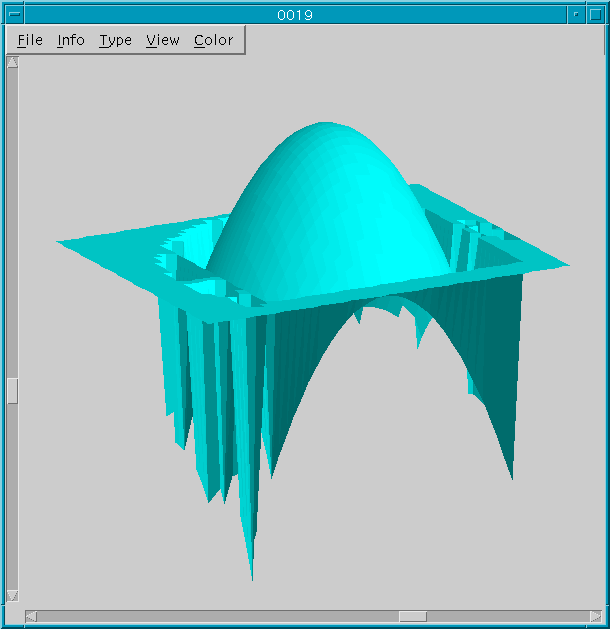
(a) Row (b) Grid (c) Solid
Figure 1-14. Examples of plotting styles available in hbar's surface
plotting tools
Clicking on View activates a menu with four choices: Isometric, Perspective, Visible, and Hidden. The first two choices, Isometric and Perspective, determine the type of projection used in rendering the surface. The third and fourth choices, Visible and Hidden, specify how hidden lines and surfaces are to be drawn: Specifically, selecting Visible instructs the renderer to draw all lines and polygons, whether thay are visible from the view point or not. Hidden instructs the renderer to draw only those lines and polygons that are visible from the view point. The different combinations of the choices are depicted in Figures 6-15a-d.
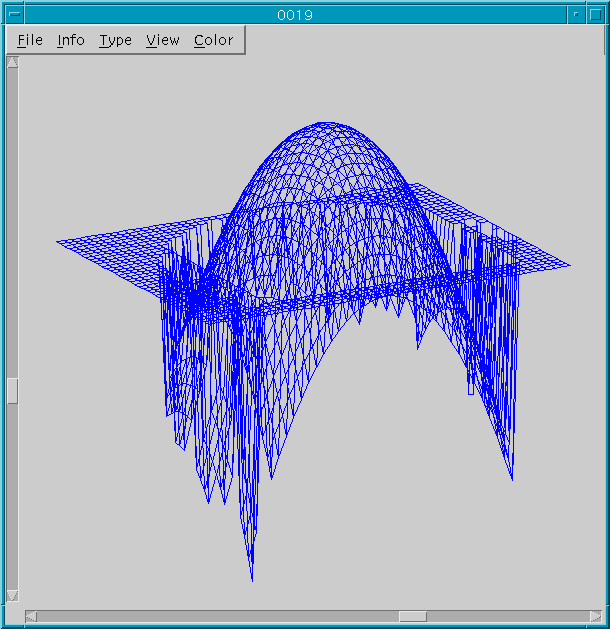
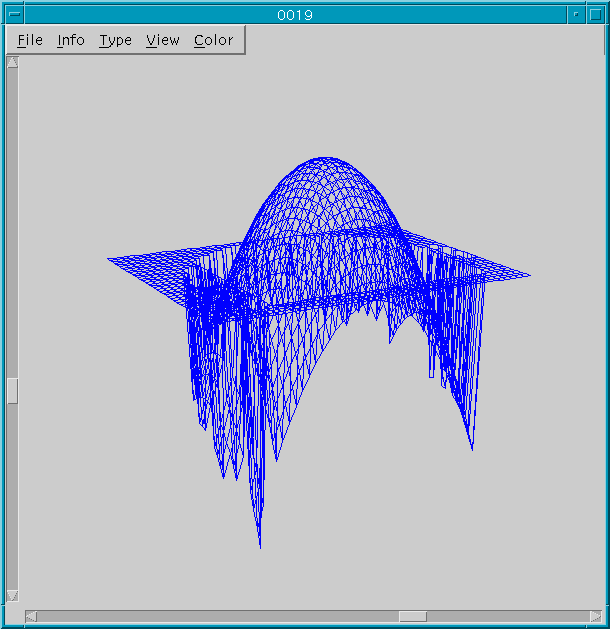
Figure 1-15. Examples of the different projections available in hbar's surface plotting tools
(a) Isometric-Visible (b) Perspective-Visible
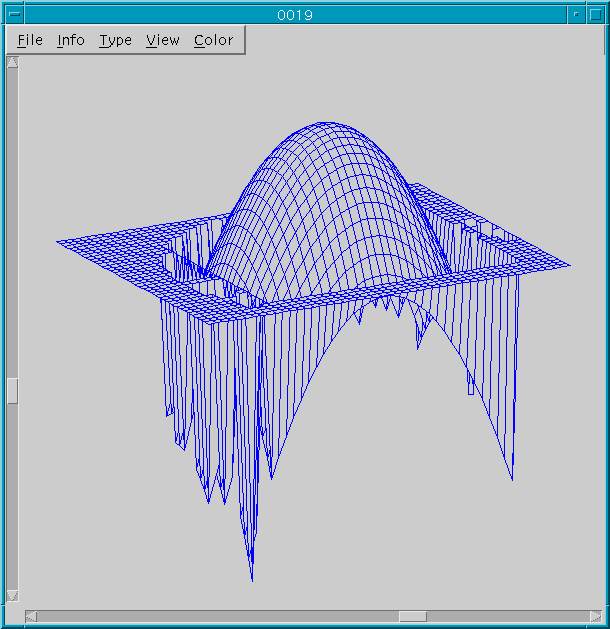
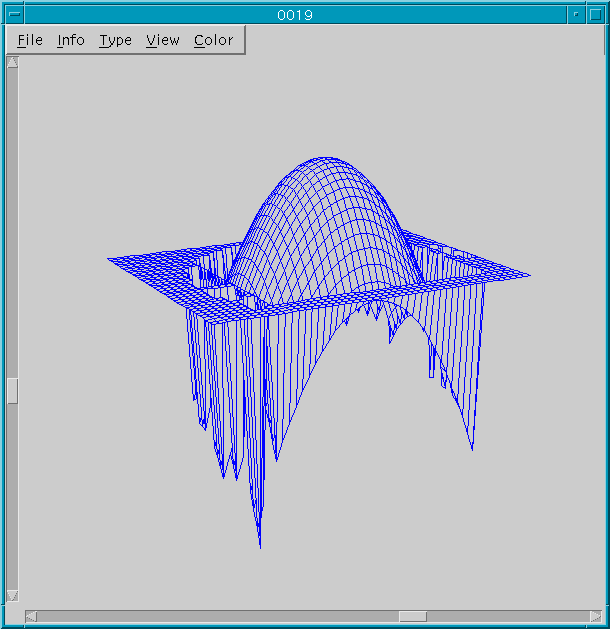
Figure 1-15 (continued)
(c) Isometric-Hidden (d) Perspective-Hidden
Clicking on Color activates a menu with seven choices: white, red, yellow, green, cyan, blue, and magenta. Selecting any one of the color choices will change the rendering color to the selected color. white is the default rendering color.
The view point is located at a constant radius from the origin of the coordinate system, which is fixed at the center of the data X-Y grid. The line of sight extends along a ray from the view point through the origin of the coordinate system. The horizontal and vertical scrollbars control the azimuth (longitude) and elevation (latitude) angles of the viewpoint, respectively. Different views of a surface are shown in the sequence of images in Figure 1-16. Note the scrollbar locations.
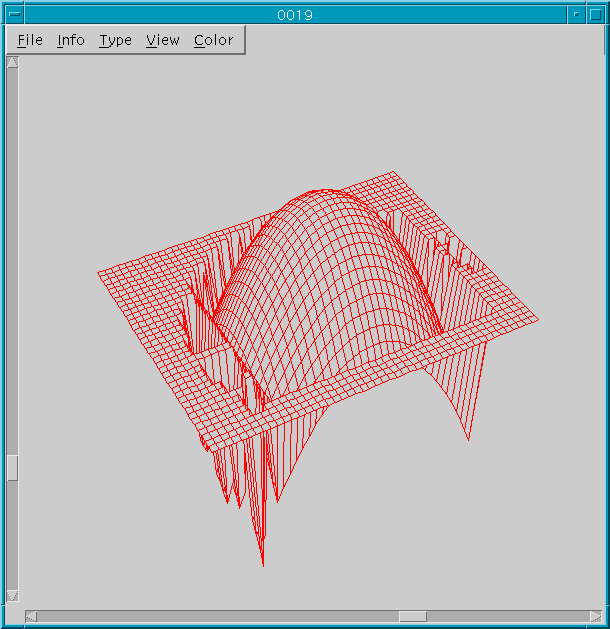
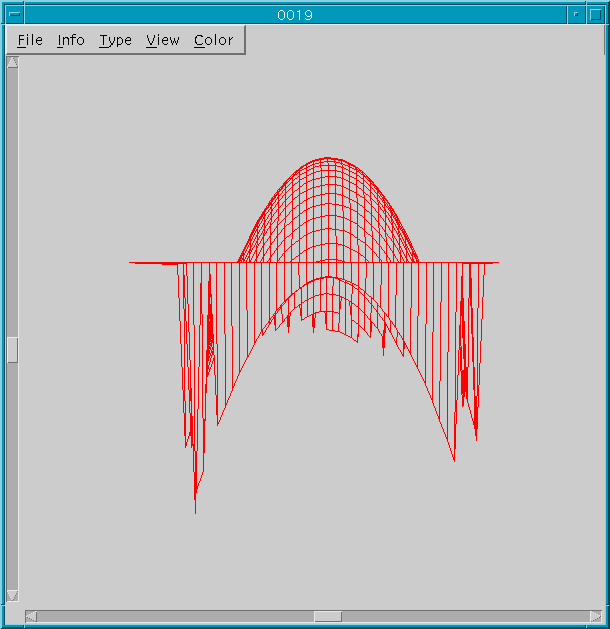
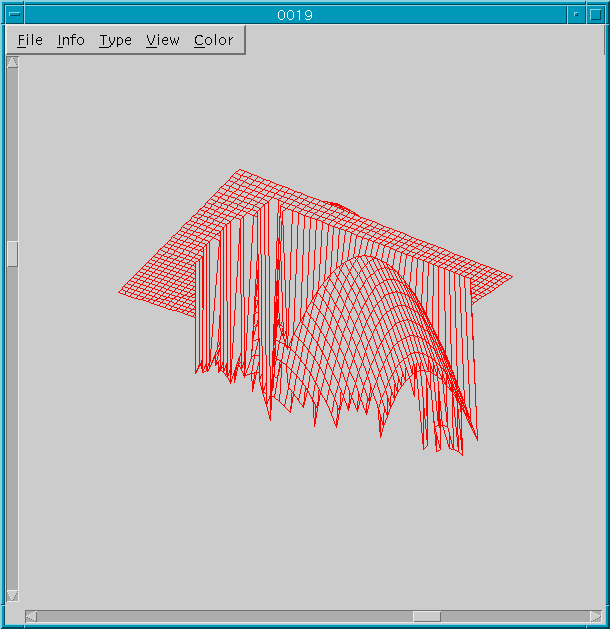
Figure 1-16. Different views of surface data produced by adjusting horizontal
and vertical scrollbars
(a) Top View (b) Side View (c) Bottom View
Contours of hbar surface data may be plotted either with the con.* commands from the hbar interface, or with condis from Unix. In most ways, the contour plotting application works the same as the image display utility imdis, with contour plotting as the added feature.
From the hbar command line, surface contours are plotted by the same procedure as plotting images, except using con.* commands. For example, to plot contours of the data stored in the file 0019:
% a.load "0019" = a1
% con.new CD% con.set.array CD a1
These commands produce the display shown in Figure 1-17, with the exception that the color map in the display has been changed to Rainbow (see the section 6.5.4 for more information on color maps).
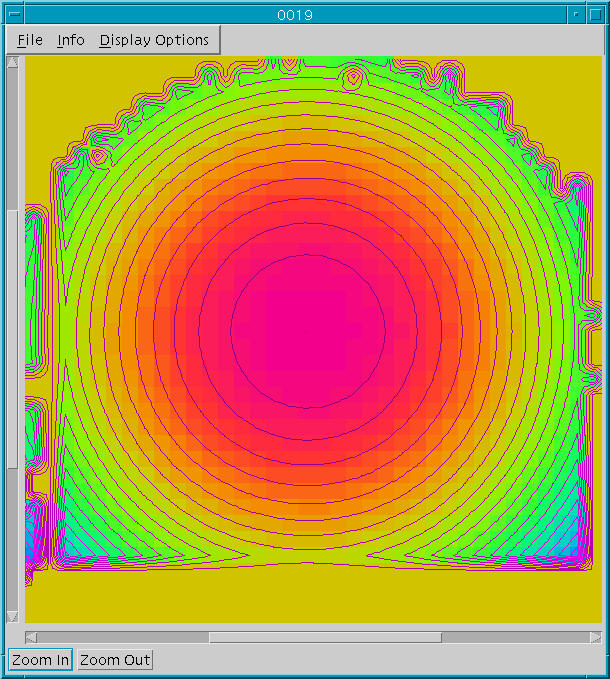
Figure 1-17. A hbar contour plot
While the con.* commands are fully documented in the Chapter 7,
as a general rule actions performed by the id.* commands for image
displays are performed by the analogous con.* function for contour
displays (i.e., id.new = con.new, id.set.array
= con.set.array, and so on).
From Unix, contour plots are displayed by condis, which is used as follows:
% condis file [min max] [+r rects] [+v vects] [+p pos] [+c circ]
where the bracketted [] arguments are optional, and have the same interpretation as the similarly named arguments imdis. To plot the contours of 0019 with condis, type
% condis 0019
The menu bar in the upper left corner of the display window has three items: File, Info, and Display Options. The menu bar items, as well as zooming and positioning, are discussed in the following sections.
Clicking on File activates a menu with three choices: Open, Print, and Quit. Clicking on Open pops up a file browser from which the user can select a file to load. The file browser and the procedure for loading a data file are identical to those for imdis (see section 6.1.2).
Clicking on Print opens the print option window, as will be decribed in section 6.6.
Clicking Quit closes the contour display window.
Selecting Info from the main menu bar opens an information window identical to that used by the image display utilities (i.e., imdis). See section 6.1.3 for details on using the information window.
Clicking on Display Options raises the Display Options dialog window, as shown in Figure 1-18.
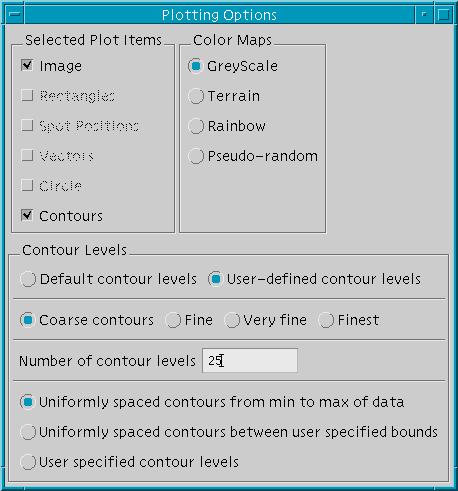
Figure 1-18. Contour plotting Plotting Options window
As seen in Figure 1-18, the dialog window consists of three group boxes:
Selected Plot Items, Color Maps, and Contour Levels.
Each group box serves a different purpose, as described below.
The Selected Plot Items box contains a list of objects (Image, Rectangles, Spot Positions, Vectors, Circle, Contours) that are, or may be, displayed in the display window. Next to each object in the list is a checkbox that indicates if the object has been selected for display. By default, all objects that have been passed to the contour plotting utility are plotted, and hence selected in the Selected Plot Items box. Those objects for which no data has been supplied are deactivated in the list. Plotted objects can be deselected in the list and are not redrawn when the display is redrawn. The same objects can subsequently be reselected and redisplayed.
The Color Maps box contains a list of the color maps available to the user, with the active color map's check box selected. Selecting another color map (by clicking on the corresponding checkbox) results in the display being redrawn in the selected color map.
The Contour Levels box consists of four sub-boxes. The first consists of the Default contour levels and User-defined contour levels buttons. When the contour plotting utility is started, the "default contour levels" are plotted--10 contours evenly spaced between the minimum and maximum of the surface data. Hence the default state for this first sub-box is Default contour levels. The items in the other three sub-boxes are inactive when Default contour levels is selected.
Clicking on User-defined contour levels activates the inactive sub-boxes. The second sub-box gives a choice for the coarseness of the plotted contours: Coarse contours, Fine, Very fine, and Finest. The choice in this sub-box affects the recursion level of the contour plotting algorithm, with Coarse contours representing the lowest recursion level and Finest representing the highest. Hence, Coarse contours gives the lowest quality contour plots in a minimum of time, where Finest produces high quality contours with some penalty in the plotting time. Coarse contours is the default.
The next sub-box contains a text field in which the user may enter the desired number of contour levels. The number of contours to plot is changed by typing in the new number in the text field. Pressing Return will prompt condis to redraw the contours with the new number of contour levels. The default number of contour levels is 10, with a maximum of 25.
The final sub-box gives the different choices of specifying contour levels. The choices are Uniformly spaced contours from min to max of data, Uniformly spaced contours between user specified bounds, and User specified contour levels. The choice of methods may be made by clicking in the checkbox next to the desired method. The first choice, Uniformly spaced contours from min to max of data, plots the number of contour levels given in the text box above from the minimum to the maximum of the surface data, with contour levels spaced by equal increments.
Clicking on the checkbox for the second choice, Uniformly spaced contours between user specified bounds, raises the dialog window shown in Figure 1-19.
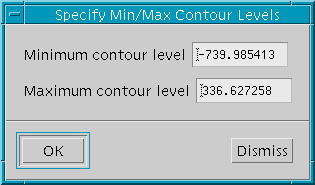
Figure 1-19. Min/Max Contour Level window
The user may enter a minimum and maximum value between which the program
is to plot evenly spaced contours in the appropriate text fields. The number
of contours plotted is specified in the text box in the Display Options
dialog window. Clicking on OK in the dialog window accepts the minimum
and maximum values and has the program redraw the display with the new
contour data. The default minimum and maximum are the data minimum and
maximum.
Clicking on the checkbox for the third choice, User specified contours, pops up the dialog window shown in Figure 1-20. This dialog window has the same number of text fields as specified in the Display Options dialog window.
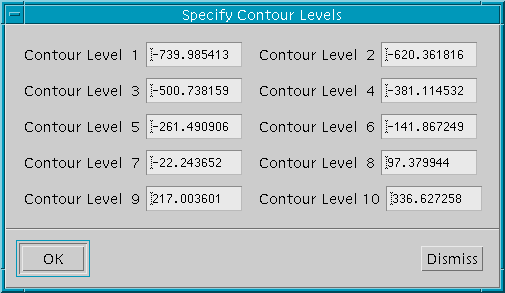
Figure 1-20. User Specified Contour Levels window
The user can change any or all of the contour levels specified in the dialog
window. Clicking on OK accepts the contour levels and redraws the
display. Note that the contour levels do not need to be specified in any
particular order. Those contour levels that do not fall within the minimum
and maximum of the surface data will not be plotted. The default values
in the text boxes are the default contour levels.
The user may zoom in or zoom out by clicking on the Zoom In and Zoom Out buttons in the lower left corner of the display window. These buttons function identically to those in the image display utility.
The image in the display window may be positioned using the horizontal and vertical scrollbars as in the image display utilities (i.e., imdis).
For all display utilities, the contents of the window may be printed by clicking on File in the main menu bar and then selecting Print. The window shown in Figure 1-21 pops up and allows the user to set the necessary printing parameters.
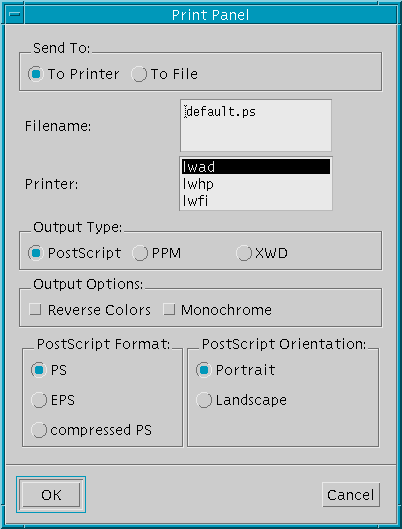
Figure 1-21. hbar printing options window
Printing is achieved by taking a snapshot of the display with an external
utility and either dumping the bitmap to a file or to the selected printer.
The choice between writing the image to a file or printing is made in the
Send To: box. The choices, To Printer and To File,
are self-explanatory. The default is To Printer.
The next two text boxes allow the user to specify either the output
file name (if To File was selected) or the destination printer (if
To Printer was selected). The default output file is default.ps.
The second text field contains a list of all the configured printers for
the system on which hbar is running. The destination printer is
selected by clicking on the appropriate printer name. The default printer
is the printer that appears first in
the list.
The next box, Output type, allows the user to select the output image format. PostScript (PS), Portable Pixmap (PPM) and X Windows Dump (XWD) are the supported image formats.
In the Output Options box, the user can choose to print the image with either the reverse (negative) color map, or print the image in monochrome.
The last two boxes set PostScript printing options. The PostScripts Formats box allows the choice of normal PostScript (PS), encapsulated PostScript (EPS), or compressed PostScript (compressed PS). The PostScript Orientation box gives a choice of printing the image in Portrait or Landscape. The default orientation is Portrait.
Clicking on OK accepts the printing configuration specified in the items discussed, and initiates the screen grab and image dump.