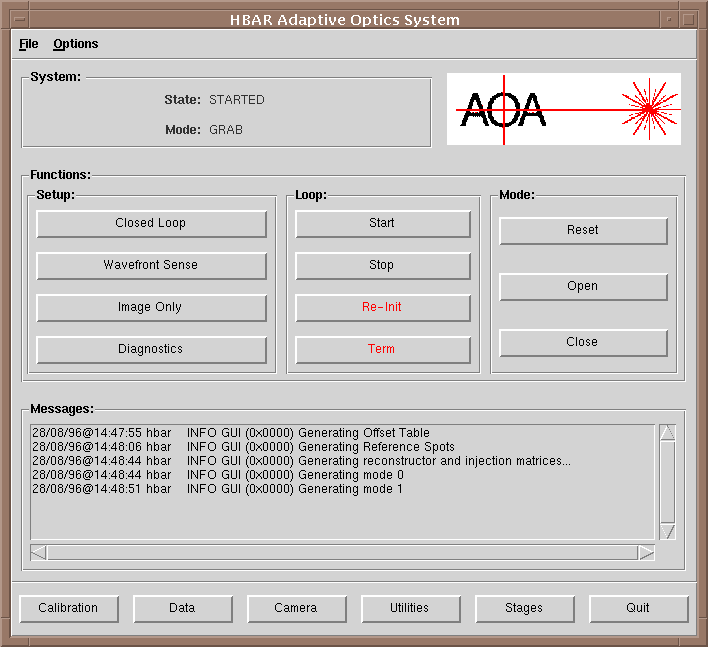
Upon entering the hbar command, the main GUI panel appears on the display. This panel allows the user to access all of the functionality of the system for normal operation and test. It is shown in Figure 9.1 and its various subpanels described below.
FIGURE 9.1 Main Panel
The first subpanel in the GUI is the System panel that provides information on the current status of the system. There are two fields in the panel, one showing the system status and the other the current mode of the system.
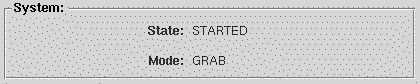
FIGURE 9.2 System Status
Below the system panel is a set of three subpanels that provide the main interface for the control of the system functions. The three panels are for the Setup of the system, the control of the Loop, and setting the Mode of the system.
The Setup section of the Function panel has four buttons that raise the sub-panel required for the setup of the parameters for the specific type of system operation desired. The topmost button is for the setup of the closed loop system, the next for the wavefront sensing system, the third for the setup of image acquisition only, and the fourth for the diagnostic mode.
Clicking on the Closed Loop button causes a sub-panel to appear on the display. This panel, the Setup: Closed-Loop Operation panel is shown in Figure 9.4. It provides the necessary functions for the setup of the system for normal closed-loop operation.
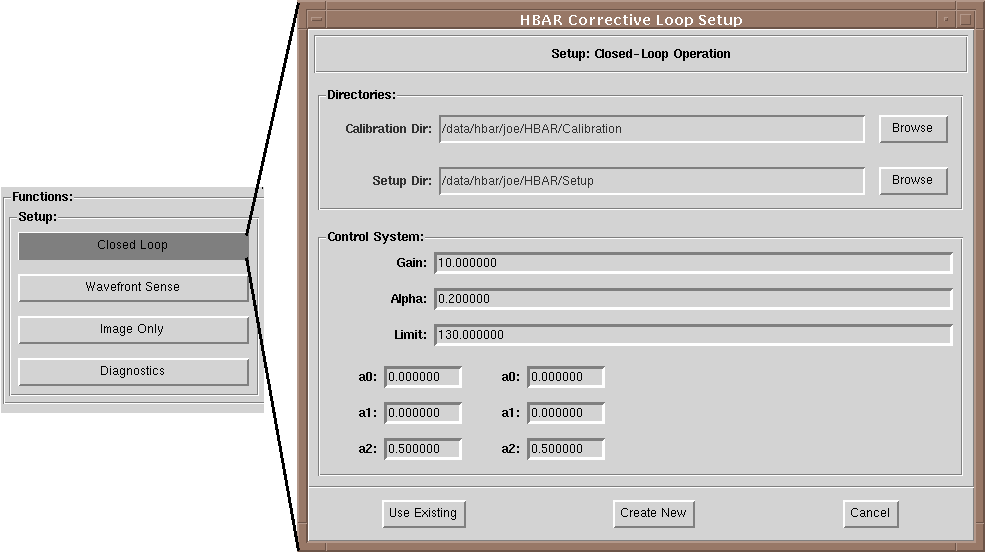
FIGURE 9.3 Closed Loop Setup
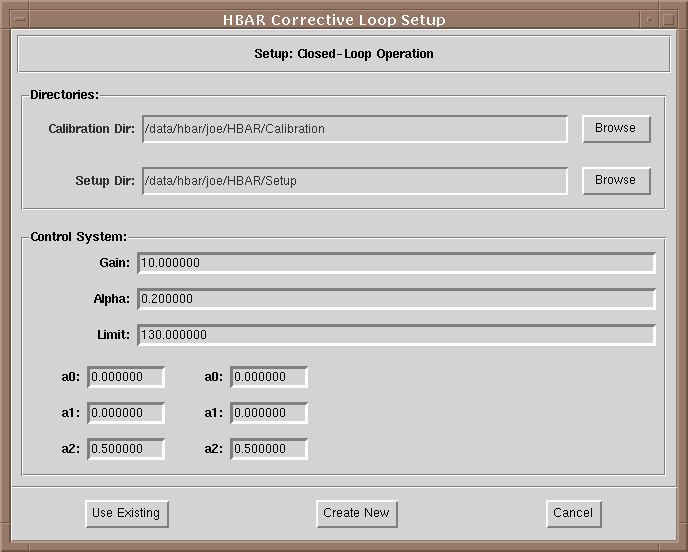
FIGURE 9.4 Loop Setup
The upper subpanel of this setup panel allows the user to select the calibration
and setup directories to be used by the system. The calibration directory
is used to save the results of the calibration procedures (such as dark
and reference spot positions) while the setup directory holds the various
tables that are downloaded to the real-time system.
The Use Existing button at the bottom left of the panel will select the contents of the selected calibration and setup directories for use by the system. Create New will generate new directories using the selected path names and use them to save the proper data for closed loop system setup.
The Control System subpanel allows the user to examine and change the values of the parameters of the control algorithm. For more information on the meaning of these parameters see the Theory of Operation Section.
Selection of the Wavefront Sense button will bring up the Setup:
Wavefront Sensing panel. This is shown in Figure 9.6. This panel has
the same directory selection section as the previous, but lacks the control
algorithm setup subpanel. 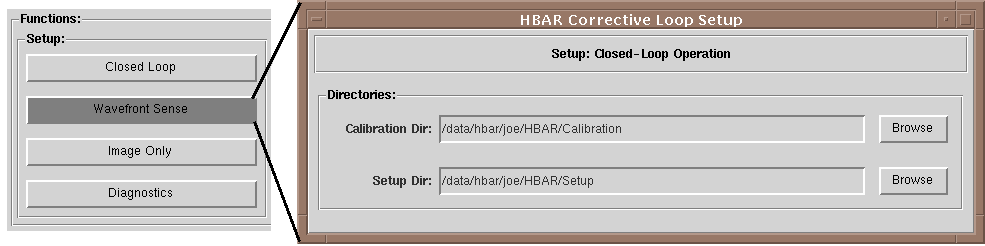
FIGURE 9.5 Wavefront Setup
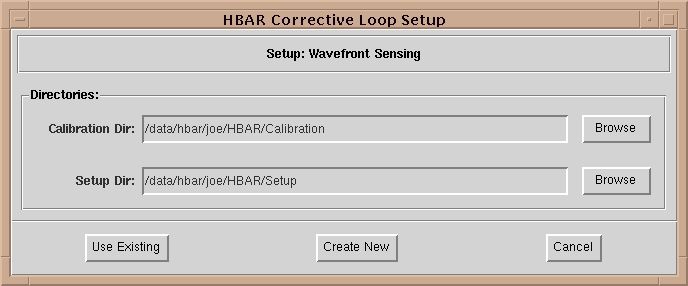
FIGURE 9.6 Wavefront Sensing Directories
The third choice in the Setup section of the panel will raise the Setup: LLCCD Image Collection subpanel. This subpanel allows the user to either go forward with the LLCCD setup or to cancel the operation. No calibration or setup directories are required.
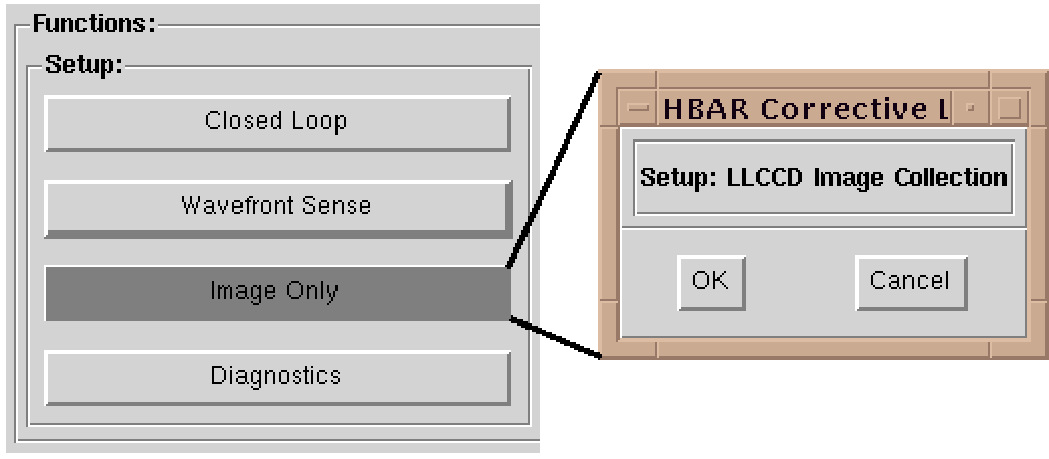
FIGURE 9.7 Imaging Setup
The Loop subpanel (Figure 9.8) provides the user with direct control over the operation of the real-time system in any of its modes of operation. The Start and Stop buttons will cause the loop to start and stop running in the current mode. For example, if the system has been setup in wavefront sensing mode and that mode is selected (see next subpanel) clicking on start will begin the operation of the system as a wavefront sensor.
The Re-Init button re-initializes the VxWorks side of the system. This is used to assure that the real-time loop is correctly configured for the desired operation.
The Term button terminates the VxWorks side of the system. This gracefully stops all activity on the real-time system.
Both of these VxWorks side commands are built in to the functionality of the other GUI system control buttons as required. Thus it is generally not necessary to use these buttons if the system is setup and operated from the GUI in the standard way.
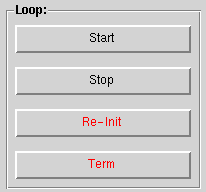
FIGURE 9.8 Start-Stop, Re-Init, Term
The Mode subpanel (Figure 9.9)has three buttons used for the control of the mode of the closed-loop system.
In Reset mode, the loop is open and the DM drive signals are held to the nominal flat values.
In Open mode, the loop is, as well, open but the DM drive signals are held at the last drive values sent prior to the loop's opening.
Close mode causes the DM drive signals calculated by the control system to be applied to the DM.
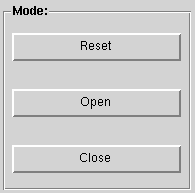
FIGURE 9.9 Open-Close loop
The bottom window on the main GUI is the Messages window. This is used to display the diagnostic and error messages that the system generates as it operates.
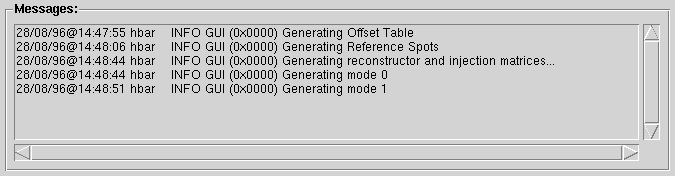
FIGURE 9.10 Message Window
Along the lower edge of the main GUI panel are six buttons that are used to raise the control panels for a number of major subsystems of the hbar hardware and software. These are: Calibration algorithms and processes; Data display and recording; Camera control; Various system utilities; Stage control; and finally system shutdown (quit).
The first button in the row brings up the Calibration sub-panel. This and additional sub-panels are used to calibrate the system for the desired mode of operation.
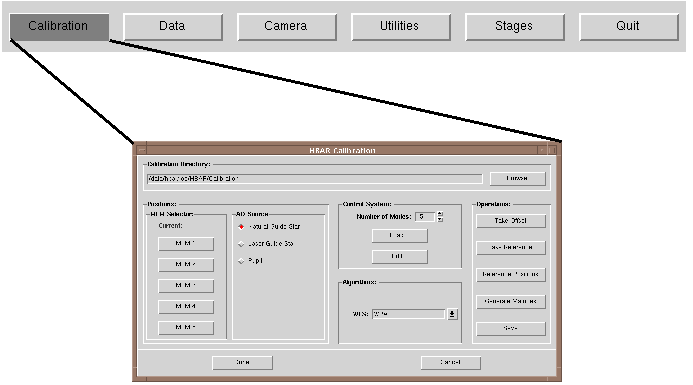
FIGURE 9.11 Calibration
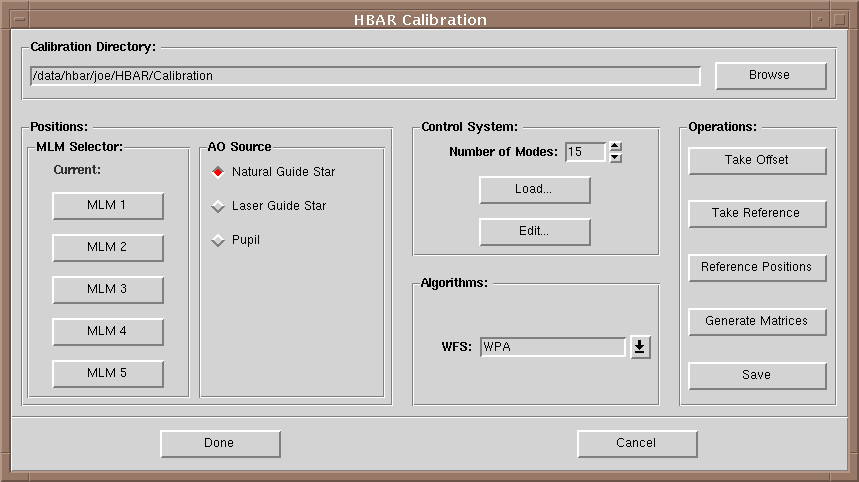
FIGURE 9.12 Calibration Setup Panel
The HBAR Calibration panel (Figure 9.12) is divided into four subpanels
each devoted to the setup of a portion of the system. These are: Position,
which sets the physical configuration of the WFS; Control System,
which allows the user to modify modal control parameters; Algorithm,
which selects the WFS algorithm to be used; and Operation, which
defines the calibration process to be executed.
At the top of the panel is a selection panel for the calibration directory (Figure 9.13). This will be the directory in which the results of the calibration process are stored. If it does not exist it will be created. If it exists and contains data, the user will be warned of this fact and asked for verification before proceeding.Old calibration data is overwritten if the directory is reused.

FIGURE 9.13 Calibration Directory
The Position panel (Figure 9.14) permits the selection of which
of the five Hartmann lens arrays will be used and reconfigures the WFS
for the particular source type. Clicking on one of the MLM buttons has
several effects on the mechanical hardware. The Hartmann Lens Array Selector
(HLAS) stage is moved to the correct position of the desired lens array.
The WFS camera stage (WFS) is moved to the correct Hartmann spot focus
position. Finally, the Field Stop Reference Fiber Z stage (FSRFZ) is moved
to the proper focus position.
Some of these positions depend upon the source altitude. This is selected via the radio buttons on the right of this subpanel. For Natural Guide Star the focal position is infinity, for Laser Guide Star it is 110 km. The Pupil selection moves the WFS stage so that the pupil is relayed onto the CCD. Default values for the mechanical positions are stored in the system configuration files. These values need to be revised after optical calibration of the system.
N.B. The movement of the stages occurs only when a lens array is selected. Changing the AOSource selection does not affect a change until an MLM button is pressed. Thus, if an AOSource change is required without changing lens array, the procedure is to make the AOSource selection and then click on the current MLM selection. This will not change the MLM position but will change the other stage positions as required.
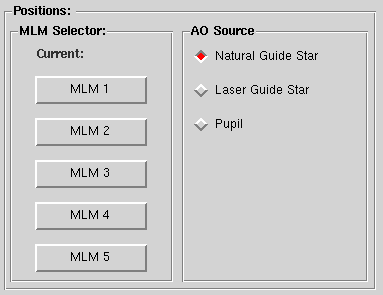
FIGURE 9.14 MLM Selection
The Control System panel (Figure 9.15) allows modification of the
modal control parameters. The selector provides a quick way of changing
the number of modes to be used in generating the reconstructor matrix.
The buttons Load and Edit permit the user to either load
a pre-existing file of modal weights or to edit the modal weights manually.
The LOAD button brings up the file selector shown in Figure 9.16.
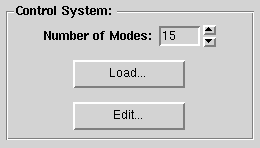
FIGURE 9.15 Setting Number of Modes
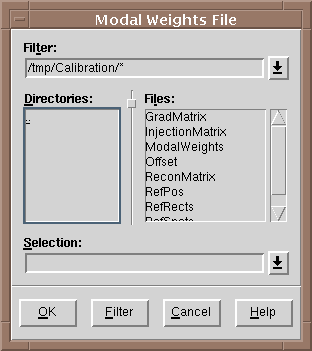
FIGURE 9.16 Setting the Modal Weight File Directory
The Edit button raises the Modal Weights subpanel shown in
Figure 9.17. This panel has provisions for quickly setting the weights
on all modes to either 0.0, 0.5, or 1.0. Alternatively, the user may set
the weights for any modes to any value from 0.0 to 1.0 using the up/down
arrows. NOTE: if the number of modes is changed it is necessary
to choose the Edit button to update the list of modal weights even
if no editing is planned.
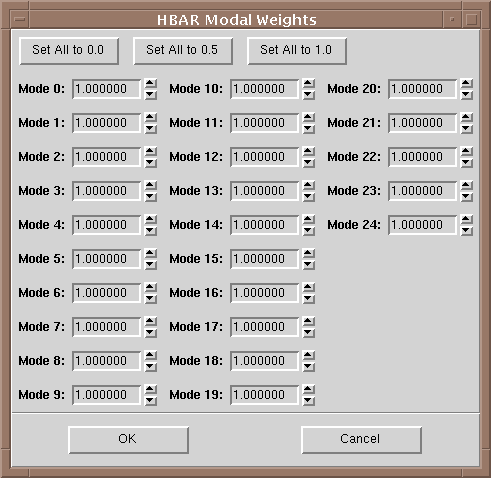
FIGURE 9.17 Setting Modal Weights
The Algorithm panel (Figure 9.18) provides a means of selecting
the WFS algorithm used between pure centroiding and spot fitting.
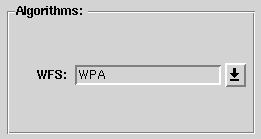
FIGURE 9.18 WFS Algorithm Selection
Once the various selections are made on the Calibration panel, the
user can specify the calibration Operation to be performed (Figure
9.19). Take offset closes the camera shutter and takes ten frames
of dark data. These images are averaged to form the Dark frame that
is saved in the Calibration Directory. Take Reference button raises
a subpanel for the selection of the reference operations and parameters
(Figure 9.20).
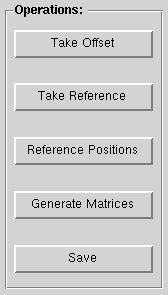
FIGURE 9.19 Calibration Operations
Reference Positions causes new reference positions to be taken.
These may be either simply new positions using the same rectangles as a
previous calibration (select Use Existing in setup) or a wholly
new calibration.
Generate Matrices obtains the full modal poke data for all selected modes and for the current subaperture list. All required matrices and other tables are then generated.
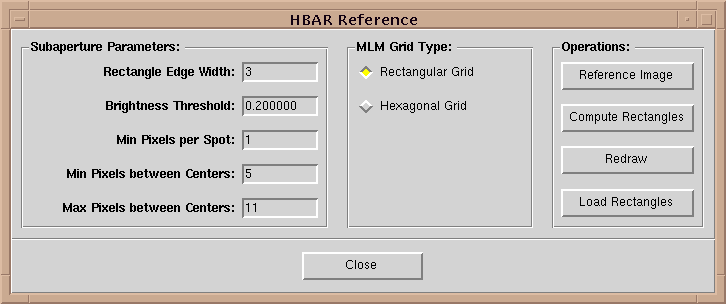
FIGURE 9.20 Reference Positions
The Reference panel will appear any time new reference data acquisition
has been requested. The left most sub-panel, Subaperture Parameters
(Figure 9.21), permits the modification of the parameters used
by the subaperture definition algorithms. Briefly their meanings are: Rectangle
Edge Width is the width of the region around the edge of the frame
within which no subapertures will be allowed; Brightness Threshold
is the fraction of the maximum brightness in the frame at which the threshold
will be set. Any pixels above this level will be passed on to the spot
finding algorithm; Min. Pixels per Spot is the minimum number of
contiguous pixels above the threshold that will be considered a potential
spot; Min. and Max. Pixels between Centers sets the range of values
of spot separation that will be searched in the histogram of spot separations
to determine the final set of useful spots. These parameters can effect
the list of accepted subapertures in ways unexpected by the novice user.
If the Min. Pixels between Centers is set too high the algorithm
may select every other spot. If set too low the size of the subapertures
may be unnecessarily small. It is best to set the values about 1/[radical]2
and [radical]2 times the mean separation for the min. and max. respectively.
If the difference between the min. and max. is more than a factor of two
it is possible that double or half the correct separation will be chosen
by the algorithm.
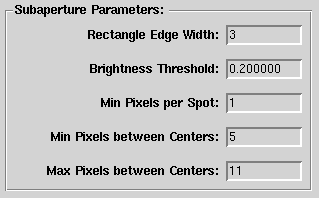
FIGURE 9.21 Subaperture Parameters
The MLM Grid Type radio buttons should be configured to match the
MLM selected. This is not automatic at the present time.
The Operations panel (Figure 9.22) causes the execution of the selected calibration process. Reference Image collects a new image of the reference Hartmann spot pattern. Compute Rectangles causes the processor to generate a new set of subapertures using the parameters set in the Subaperture Parameters panel. The results of this algorithm will be presented to the user and the option of manual editing of the subapertures is provided. This may be a good idea in cases where there are known oddly behaving subapertures (e.g. low light, partial obscuration, etc.). After editing, it is necessary to click on the Redraw button to update both the image display and the saved subaperture list. If the subapertures from a previous calibration are to be used, the Load Rectangles button brings up a file browser for the selection of the saved subaperture list file name.
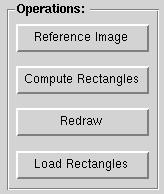
FIGURE 9.22 Operations
The second button in the row brings up the Data Handler sub-panel (Figure 9.23). This panel is used to control the display and recording of wavefront data as well as containing the diagnostic data window.
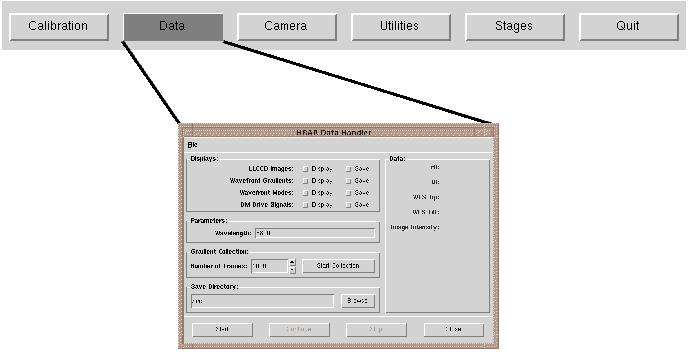
FIGURE 9.23 Selecting the Data Handler
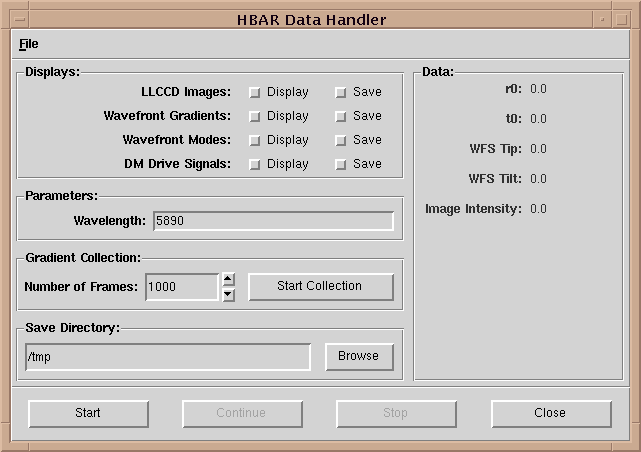
FIGURE 9.24 Data Handler
The Data Handler panel has several regions of interest: The Displays
control panel (Figure 9.25) which permits the display or saving to disk
of images, gradients, modes, or DM drives; the Gradient Collection
control panel (Figure 5.1 27) that sets the number of frames of full frame
rate data to be collected, the directory in which to store them, and also
provides a button to initiate the data collection; and lastly the Data
panel (Figure 9.28) that displays the real-time estimates of ro,
to, and full aperture tip, tilt and intensity.
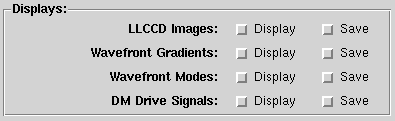
FIGURE 9.25 Displays
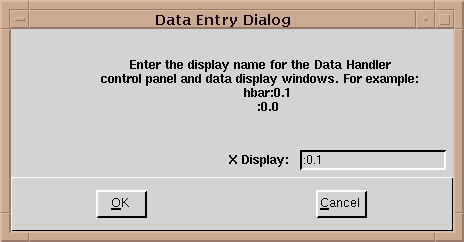
FIGURE 9.26 Data Entry Dialog
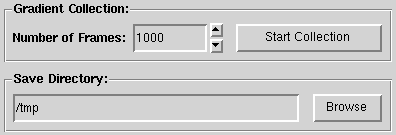
FIGURE 9.27 Gradient Collection
The Data panel provides a "real-time" display of several
interesting parameters of the AO loop performance. The method of calculating
these parameters is described in the Theory of operation section of this
manual.
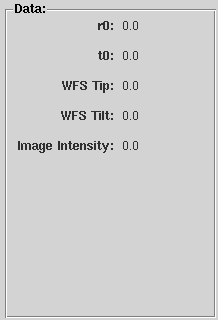
FIGURE 9.28
The third button in this row raises the LLCCD Camera control panel.
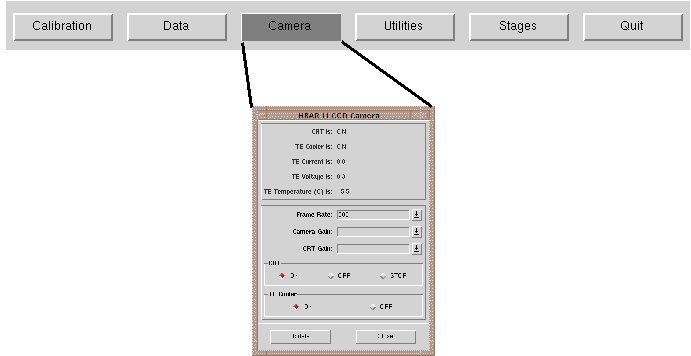
FIGURE 9.29 Selecting the LLCCD Camera Control Panel
The LLCCD Camera panel provides both control and diagnostic data
on the LLCCD in the WFS. In the upper sub-panel the present status of several
camera parameters are presented. These do no update automatically, but
only when the panel is brought up or the Update button is pressed.
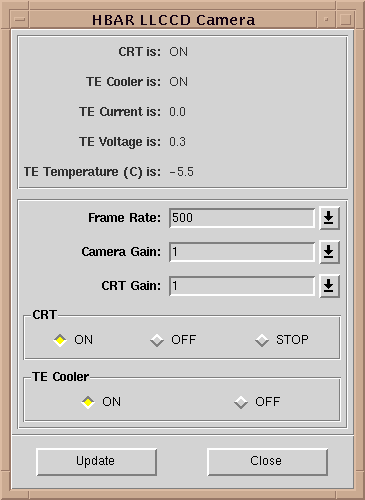
FIGURE 9.30 LLCCD Camera Control Panel
In the lower section, controls for the frame rate, camera gain, and CRT
gain are provided. The frame rate has a discrete set of values allowed.
If other values are entered, the closest allowed value will be used. The
camera gain should not be changed. The CRT gain affects the appearance
of the RS-170 display only.
The CRT and TE Cooler radio buttons allow the user to control these camera subsystems. Note that the CRT is turned off when the camera is started or re-initialized but the aspect of the radio button signal is not changed. Thus it is necessary in such cases to click of the CRT ON button to turn the CRT on even though the CRT On button is already indicating, via its aspect, that the CRT is on.
Button number four brings forward the Utilities panel. This panel collects a number of functions related to the control of the opto-mechanical and electro-optical components of the system.
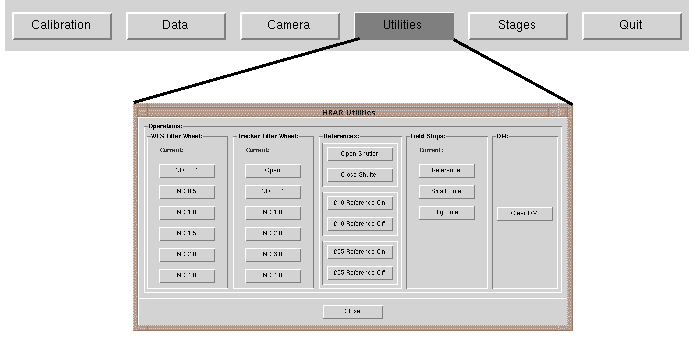
FIGURE 9.31 Selecting the Utilities Control panel
On the left side are two columns of buttons for the selection of the position
of the neutral density filter wheels in both the WFS and Tracker legs of
the optical system. In the center section of the panel are the controls
for the LLCCD shutter and the two reference fibers. The next sub-panel
to the right provides control for the field stop and f/25 reference fiber
positioning. Finally, on the far right is a button that causes the nominal
"null" (32767) values to be written to the DM drivers. This is
used in preparation for shutting down the DM subsystem.
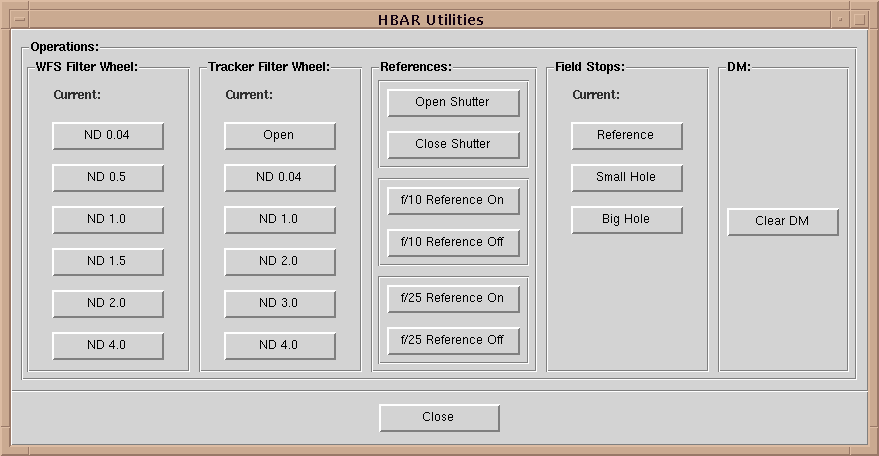
FIGURE 9.32 Utilities Control panel
The penultimate button in this lowest row brings up a set of GUI panels (Figure 9.33) for the control of the stages in the system.
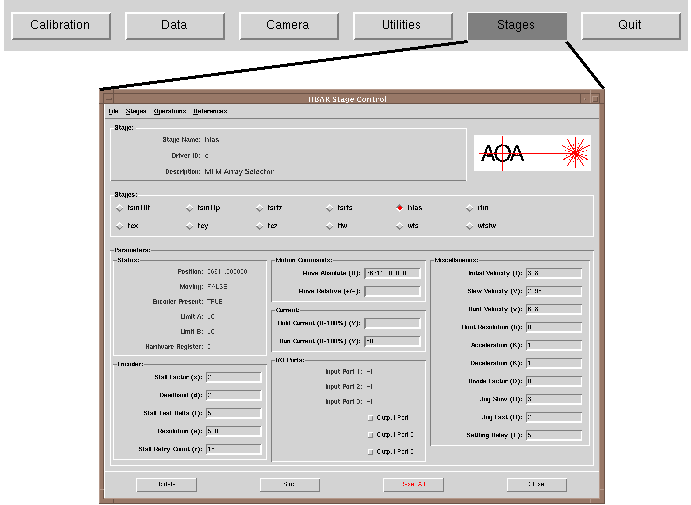
FIGURE 9.33 Selecting the Stage Control Panel
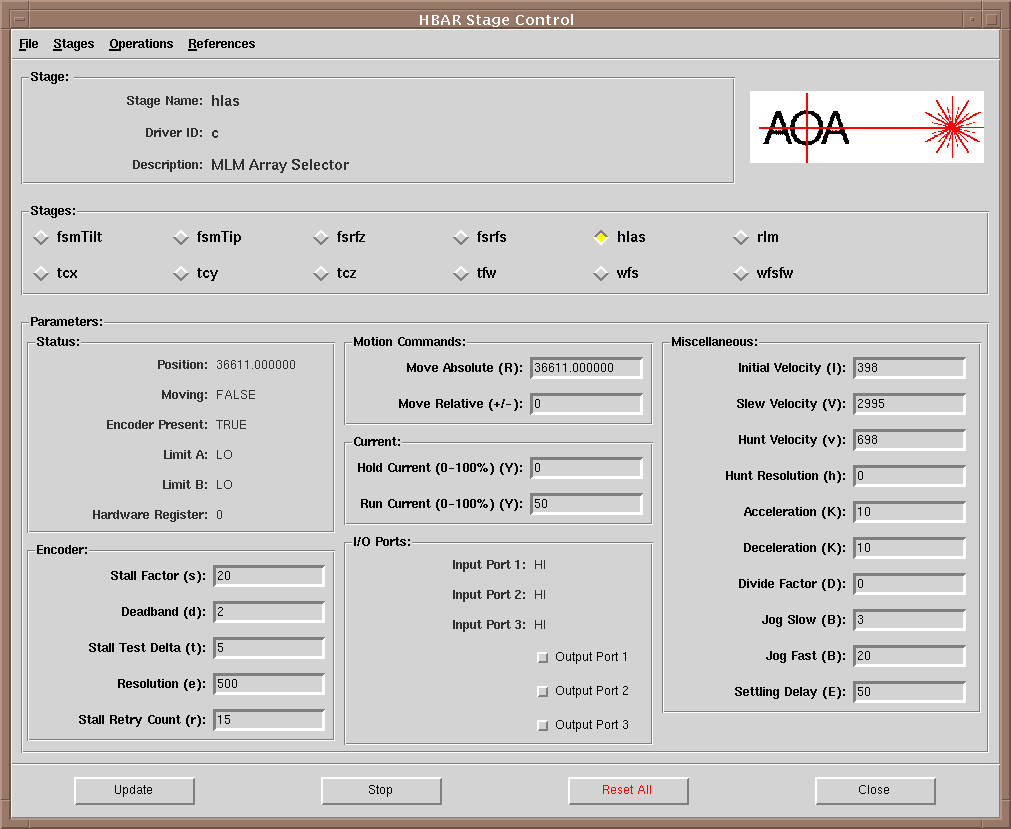
FIGURE 9.34 Stages Control Panel
There is a control panel for each stage in the system. Only one may be
made visible at a time. In the upper portion of the panel is the Stage
sub-panel that provides information on the currently selected stage. The
subject stage may be selected either via the radio buttons in the next
lower sub-panel or from the Stages menu (Figure 9.35).

FIGURE 9.35 Selecting a Stage
The lower part of the panel is divided into three subpanels. The leftmost
(Figure 9.36) provides information on the current status of the stage (e.g.
current position, encoder status) and make possible the modification of
the stage encoder parameters.
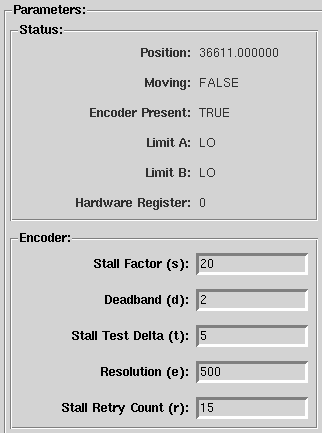
FIGURE 9.36 Stage Status and Encoder Setup
The central sub-panel holds the entry windows for the move commands, the
drive currents, and also shows the status of the digital ports of the stage
driver.
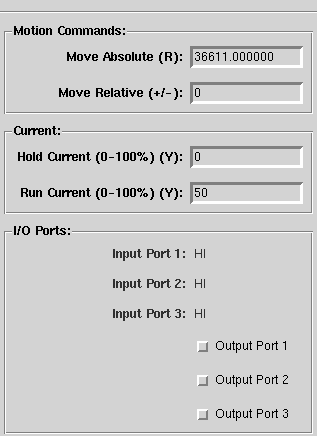
FIGURE 9.37 Stage Motion Control panel
The final sub-panel holds the remaining stage drive parameters. Unless
a stage is replaced or modified there should be no reason to change these
values in normal operation. Incorrect values could damage the stage and
driver. The correct values have been incorporated into the stage.parameter
files.
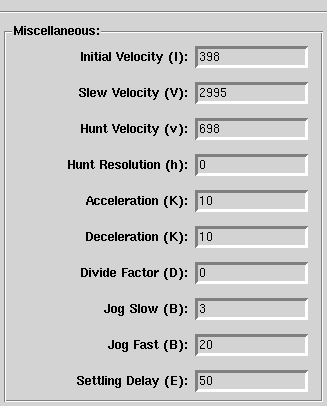
FIGURE 9.38 Stage Parameters
Note that when the system is started none of the stages are initialized.
Thus it is necessary either to initialize each stage before it is moved
(via the Initialize command in the Operations menu) or to
select the Initialize All command in the same menu. This operation
takes several minutes. Each stage has to be moved to a limit to aquire
a know position. The stages are initialized in sequence.
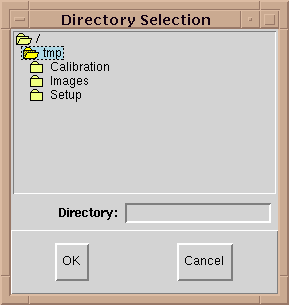
FIGURE 9.39 Directory Selection Tool